
Configure and Generate a Linux Filesystem with Buildroot

What Buildroot enables: configure and generate a Linux system and the toolchain needed to compile programs from your workstation that can run on that system, regardless of the target architecture
13/08/2020
Nathanaël Landais
Manually configuring a Linux filesystem can be complex and time-consuming. It's also poorly suited to industrial use, where process reproducibility and predictability are key.
Fortunately, there are tools designed to automate this process, making it possible to configure a system's requirements once and then regenerate it at will.
Buildroot is one of these tools, and it's what we'll look at today.
What it enables: configure and generate a Linux system and the toolchain needed to compile programs from your workstation that can run on that system, regardless of the target architecture (usually ARM).
Why Buildroot?
- Open source (LGPL2 License)
- Actively maintained by the community
- Simple to configure, perfectly suited for most embedded system needs
Prerequisites
Buildroot only works on Linux, so configuration will be done on a Linux system.
In this article, we'll use Ubuntu 20.04; the example commands given should work for any Debian-based distribution (Ubuntu, etc.). In any case, it's possible to configure Buildroot simply on any distribution.
In our example, we'll configure a system for ARM architecture running a Qt application. If you don't have an ARM board for testing, you can either run it with the QEMU emulator or generate for x86 architecture and install it in a virtual machine.
Getting Buildroot
To get Buildroot, simply go to the official website: https://buildroot.org/download.html. We'll take the latest LTS (Long Term Support) version which guarantees maintenance for one year, without needing to upgrade to a higher version to benefit from bug fixes and security patches.
You can extract the downloaded archive in the folder where you want to work.
Dependencies
To generate a system with Buildroot you'll need some standard Linux utilities. They're listed on this page: https://buildroot.org/downloads/manual/manual.html#_buildroot_quick_start
To install them simply, on a Debian-based distribution (such as Ubuntu):
$ sudo apt install build-essential perl unzip rsync binutils make python libncurses5-dev
Configuring Buildroot
Warning: Buildroot configuration doesn't require root privileges and you should not execute the following commands as root.
We'll now configure Buildroot to generate a system containing all the elements we need.
Buildroot has several configuration interfaces; we'll use the ncurses interface for which you should have the necessary dependencies if you followed the previous instructions.
To open the configuration interface, navigate to the Buildroot folder and enter:
$ make nconfig
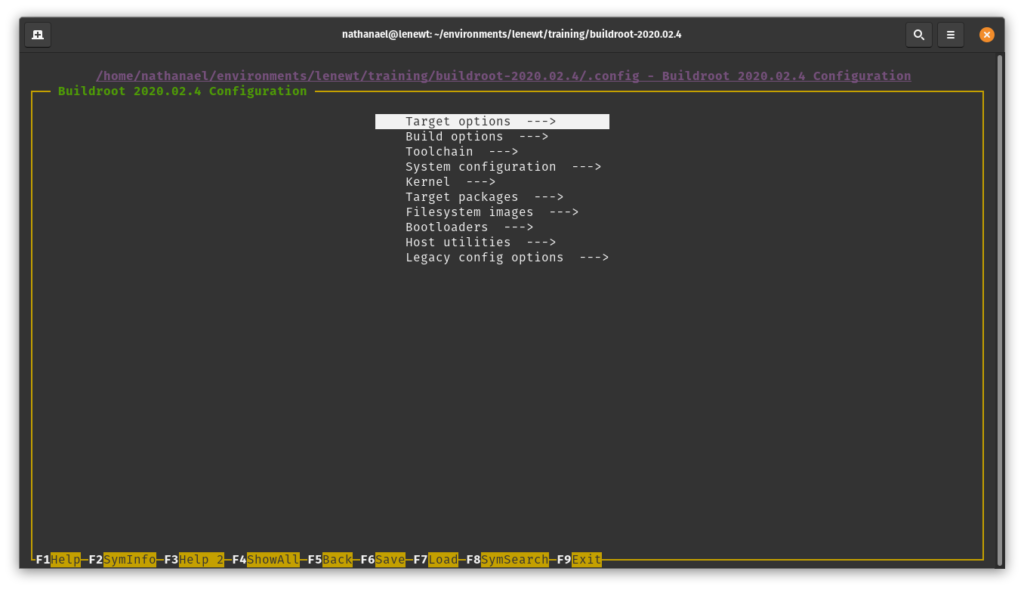
To start, we'll configure Buildroot for ARM. So go directly to Target options > Target Architecture and select ARM (little endian) from the list, quite simply.
You can then go back by pressing the escape key.
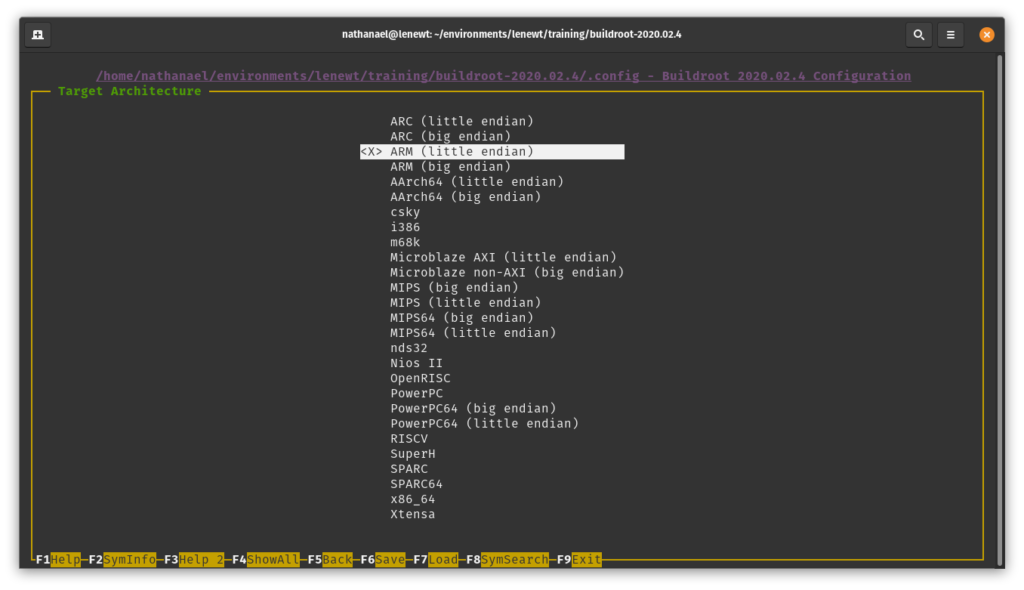
Depending on the board on which you'll install this system, you can also select your variant in "Target Architecture Variant" to allow Buildroot to optimize generation for your architecture.
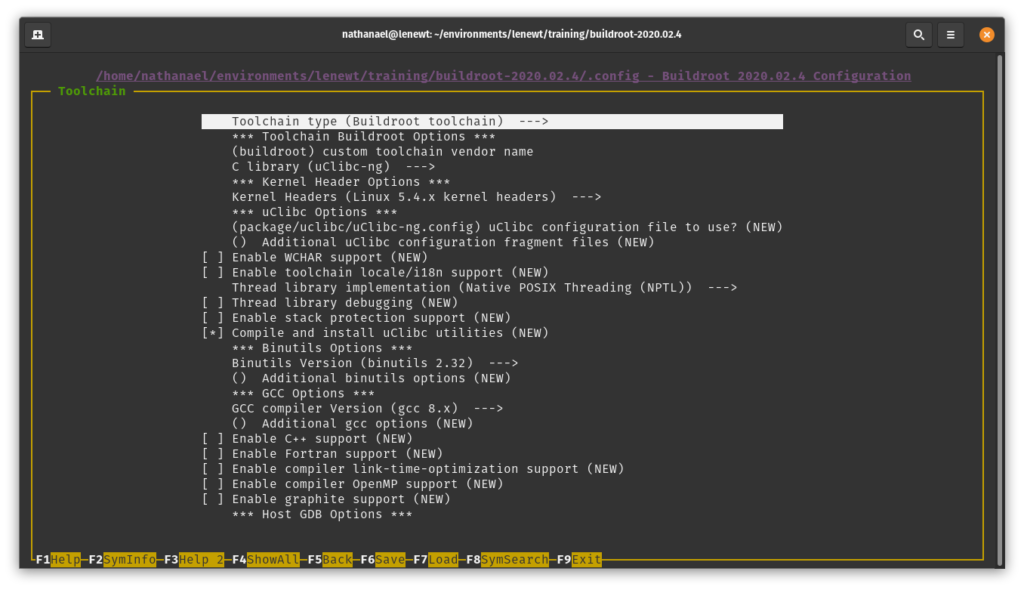
Another important category is the Toolchain category. You can configure many options there for the toolchain that Buildroot will generate.
Among them: which C library to use, support for certain programming languages such as C++, which GCC version to use, and more!
If these options don't mean anything to you, you can leave them at default values for now; you can always change Buildroot's configuration later.
In our case, we'll check "Enable C++ support" and "Enable WCHAR support" which are both necessary to install Qt.
We can now move to an important menu: "Target packages."
It's in this menu that you can add to your system the packages you need as well as your application's dependencies.
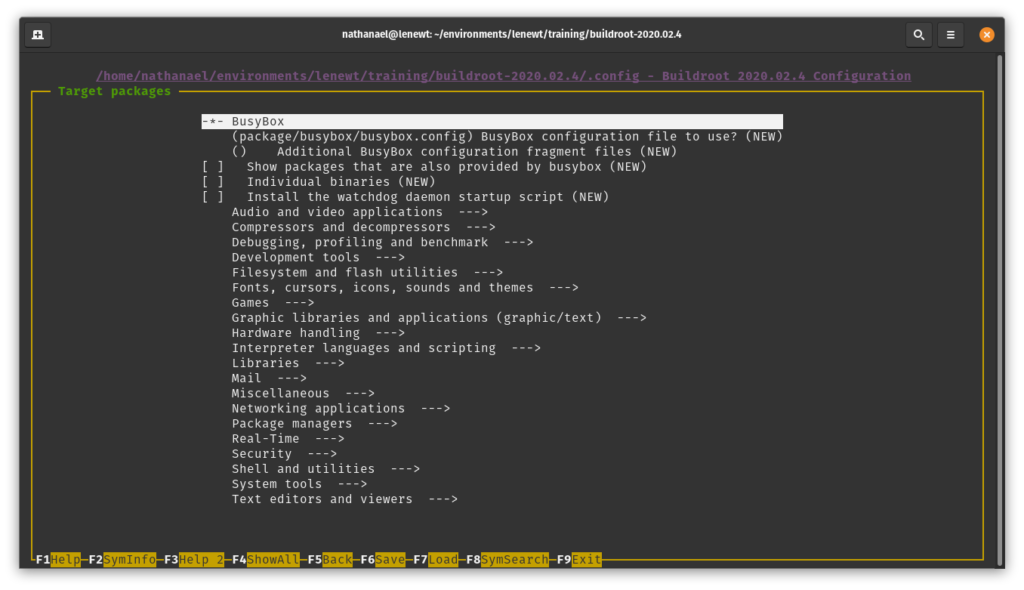
For our example we'll go to "Graphic libraries and applications" and check "Qt5."
Buildroot ensures that the dependency tree necessary for installing the packages you select is satisfied.
When you've finished your configuration, you can exit the menu by pressing F9. Don't forget to save when the menu prompts you.
Generating the Linux System
Now that everything is configured you can generate your system and its toolchain by simply entering:
$ make
Note that Buildroot only supports parallelized compilation experimentally for now, so no need to add a -j argument
Important: an internet connection is necessary for generation; Buildroot will download the packages it needs.
This will generate all the necessary elements which you'll then find in a folder named "output." Compilation takes a few minutes—you can use this time to make yourself a coffee!
Final Words
You now have all the tools to develop and run an application on your embedded system.
In our next article, we'll see how to configure and compile the Linux kernel for your embedded system.
Need help developing your connected device or embedded system?
We can handle all or part of your embedded software development! Don't hesitate to contact us—we'll be happy to help!
Stay tuned!